
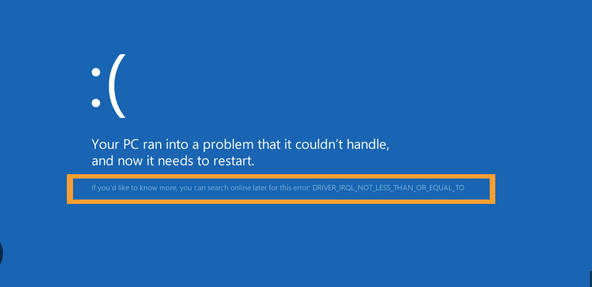
Windows is the world’s most widely used operating system, and with its popularity comes a huge variety of errors that users encounter every day. Whether you’re facing a slow startup, random crashes, blue screens, or app failures, most Windows issues can be fixed with simple troubleshooting steps—if you know where to look.
This comprehensive guide explains the most common Windows errors, why they happen, and quick, effective solutions you can use right away. Whether you’re a beginner or a tech-savvy user, this article will help you diagnose problems confidently and fix them fast.
Understanding Why Windows Errors Happen
Before jumping into solutions, it’s helpful to know why Windows errors occur in the first place. Most problems fall into these categories:
1. Software Conflicts
Multiple programs accessing the same system resources can cause freezes, errors, or app crashes.
2. Corrupted System Files
Improper shutdowns, malware, or faulty updates often damage essential Windows files.
3. Hardware Issues
A failing hard drive, bad RAM, overheating CPU, or aging components can trigger serious errors.
4. Driver Problems
Outdated, missing, or corrupted device drivers lead to crashes, display issues, and performance drops.
5. Incorrect Settings
Sometimes misconfigured system settings or accidental changes cause unexpected errors.
Understanding the cause makes troubleshooting faster and more accurate. Now let’s break down the most common errors and how to fix them.
Common Windows Errors and Their Quick Fixes
1. Windows Blue Screen of Death (BSOD)
The Blue Screen of Death is one of the most feared Windows errors, usually caused by:
-
Faulty drivers
-
Hardware problems
-
Memory issues
-
Corrupted system files
Quick Fixes
Run the Windows Memory Diagnostic
Bad RAM is a frequent BSOD cause.
-
Press Win + R
-
Type mdsched.exe
-
Restart and test memory
Update or Reinstall Drivers
Faulty drivers trigger BSODs.
-
Open Device Manager
-
Look for warning signs (yellow icons)
-
Update, disable, or uninstall suspicious drivers
Use System File Checker
Corrupted Windows files can be repaired using:
Check Hard Disk Health
Use:
If the disk shows multiple bad sectors, consider replacing it.
2. Windows Update Errors
Update errors usually show codes like 0x80070002, 0x8024a105, or 0x800f081f. They occur due to:
-
Interrupted downloads
-
Damaged update files
-
Corrupted Windows components
Quick Fixes
Restart Windows Update Services
-
Open Run → type services.msc
-
Restart these services:
-
Windows Update
-
Background Intelligent Transfer Service (BITS)
-
Cryptographic Services
-
Clear the SoftwareDistribution Folder
This folder stores update files that may become corrupted.
-
Stop Windows Update service
-
Navigate to:
-
Delete the contents
-
Restart the service
Use Windows Update Troubleshooter
Windows has a built-in tool to fix update-related problems automatically.
3. Slow Startup and Performance Issues
A slow computer is one of the most common frustrations. It happens due to:
-
Too many startup programs
-
Malware
-
Low RAM
-
Fragmented or full hard drive
Quick Fixes
Disable Unnecessary Startup Apps
-
Open Task Manager
-
Go to Startup tab
-
Disable apps with High impact
Perform a Disk Cleanup
-
Use Disk Cleanup to remove temporary and junk files
-
Delete old Windows installation files
Scan for Malware
Malicious software slows performance dramatically.
-
Use built-in Windows Security
-
Run a Full Scan or Offline Scan
Upgrade to SSD
The most effective performance improvement is upgrading from HDD to SSD.
4. Application Crashes and Freezes
If apps close unexpectedly or freeze often, possible causes include:
-
Compatibility issues
-
Outdated versions
-
Insufficient memory
-
Damaged installation files
Quick Fixes
Update the Application
Developers frequently release stability patches.
Run the App as Administrator
Some programs need elevated permissions.
Reinstall the Program
Corrupted files can be replaced by reinstalling the app.
Check for Conflicting Software
Antivirus tools, VPNs, and background utilities may interfere with apps.
5. “This PC Can’t Run Windows/Setup Failed” Errors
These errors occur when upgrading to a new Windows version.
Quick Fixes
Check Hardware Requirements
Ensure your PC meets:
-
CPU compatibility
-
TPM 2.0
-
Secure Boot enabled
-
Minimum RAM and storage
Free Up Disk Space
Windows setup needs enough space to install files smoothly.
Remove External Devices
USB drives or printers may interrupt installation.
6. Network Connection Errors
Whether it’s Wi-Fi failing to connect or Windows showing No Internet, network issues are common.
Quick Fixes
Reset Network Adapter
-
Open Settings
-
Go to Network & Internet
-
Select Network Reset
Flush DNS Cache
Use this command:
Restart Router and PC
This simple step fixes most temporary network failures.
Update Wi-Fi Drivers
Outdated drivers cause unstable or slow connections.
7. “Disk Is 100% Usage” Error
When the disk stays at 100% usage, Windows slows down dramatically. Causes include:
-
Running too many apps
-
Faulty Windows Search
-
Superfetch (SysMain) process issues
-
Hard drive problems
Quick Fixes
Disable Windows Search Temporarily
Turn Off SysMain (Superfetch)
-
Open services.msc
-
Find SysMain
-
Set to Disabled
Check Disk Health
Use Task Manager and run CHKDSK if necessary.
8. Screen Flickering or Display Errors
These errors occur due to:
-
Graphics driver problems
-
Incompatible apps
-
Loose cables or hardware issues
Quick Fixes
Update Display Drivers
Use Device Manager or manufacturer tools.
Check for Problematic Apps
Apps like antivirus tools may cause flickering; uninstall to test.
Change Refresh Rate
A wrong refresh rate causes screen issues.
Go to:
Display Settings → Advanced Display → Refresh Rate
Advanced Fixes for Persistent Windows Errors
If basic methods don’t work, try these advanced troubleshooting techniques.
1. Use System Restore
If errors started after a recent change, System Restore can roll back your PC to a working state.
-
Open Control Panel
-
Search System Restore
-
Choose a previous restore point
2. Run DISM Tool
DISM repairs Windows image files and solves deeper OS issues.
Use:
This command repairs corrupted Windows update components and system files.
3. Boot into Safe Mode
Safe Mode loads only essential Windows services, making it ideal for problem diagnosis.
Use:
-
Shift + Restart → Troubleshoot → Startup Settings → Safe Mode
Test apps, drivers, and performance to isolate the issue.
4. Perform a Clean Boot
A Clean Boot starts Windows with minimal background apps.
-
Press Win + R → type msconfig
-
Disable all non-Microsoft services
-
Restart
If the error disappears, a background app or service is the cause.
5. Check Event Viewer
Event Viewer helps identify the source of mysterious errors.
-
Open Event Viewer
-
Check Windows Logs → System / Application
-
Look for warnings or errors
This tool helps IT professionals diagnose deeper problems.
6. Reset Windows Without Losing Files
If all troubleshooting fails, resetting Windows often solves everything.
-
Open Settings
-
Go to System → Recovery
-
Select Reset this PC
-
Choose Keep my files
This reinstalls Windows while preserving personal data.
7. Clean Install Windows
This is the final option when the system is heavily damaged.
A clean install:
-
Removes all errors
-
Clears malware
-
Boosts performance
-
Restores Windows to factory condition
Be sure to back up data before installation.
Preventing Windows Errors Before They Happen
Fixing errors is good—but preventing them is even better. Follow these maintenance tips to keep your Windows system smooth and error-free.
1. Keep Windows Updated
Updates fix bugs, improve security, and enhance stability.
2. Update Drivers Regularly
Use:
-
Windows Update
-
Device Manager
-
Official manufacturer tools
3. Install Reliable Antivirus
Protect your system from malware, ransomware, and harmful files.
4. Avoid Forced Shutdowns
Always shut down properly to avoid corrupted system files.
5. Free Up Space Regularly
Keep at least 20% storage free to ensure smooth Windows performance.
6. Use SSD Instead of HDD
SSDs reduce crashes and performance issues significantly.
7. Monitor Hardware Health
Check:
-
RAM usage
-
CPU temperature
-
HDD/SSD condition
Using tools like Task Manager or Windows Security.
Final Thoughts
Windows errors may seem intimidating, but most can be fixed quickly with the right troubleshooting techniques. Whether it’s a BSOD, slow performance, update failure, or app crashes, the solutions above will help you diagnose issues step-by-step and keep your system running smoothly.
By understanding common causes, applying quick fixes, and following preventive maintenance, you can avoid future problems and enjoy a faster, more reliable Windows experience.
If you ever face persistent errors that resist all solutions, don’t hesitate to perform a System Restore, Reset Windows, or seek help from a professional technician. But for most everyday issues, this guide provides everything you need to fix errors on your own—quickly and effectively.