
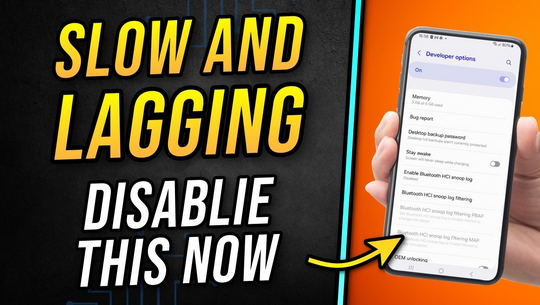
Smartphones are designed to be fast, smooth, and responsive. But over time, almost every user encounters the same frustrating issue: lag. Apps take longer to open, scrolling becomes choppy, and even basic functions feel sluggish. If you’ve ever asked yourself, “Why is my phone lagging?”, you’re not alone.
The good news? Phone lag is usually fixable. This comprehensive guide explores the most common causes of smartphone lag, how to diagnose each issue, and the most effective troubleshooting methods to bring your device back to optimal performance.
1. Understanding What Causes Phone Lag
Lag refers to a delay between your action and the phone’s response. Many factors can work alone or together to slow down your device. Below are the most common reasons:
1.1 Insufficient Memory (RAM)
Every app you open uses RAM to run. When you don’t have enough available memory, your phone struggles to switch between tasks or run multiple apps, causing stuttering or freezing.
1.2 Low Internal Storage
Smartphones need free space to store temporary files, system updates, and cached data. When storage is almost full, performance dips significantly.
1.3 Too Many Background Processes
Apps running in the background—social media apps, messaging apps, email sync, and more—consume RAM and processing power even when you’re not using them.
1.4 Aging Hardware
As your phone ages, its processor and internal components become less capable of keeping up with new apps, updated operating systems, and modern features.
1.5 Outdated Software
Running old versions of apps or the operating system can lead to incompatibility issues, bugs, and reduced system efficiency.
1.6 Malware or Suspicious Apps
Malware drains system resources and is one of the biggest culprits of unexplained lag.
1.7 Overheating
When your device overheats, it automatically slows performance to protect internal components.
1.8 Poor Battery Health
Modern phones reduce CPU performance to preserve battery life when the battery is degraded.
1.9 Visual Effects and Heavy Themes
Live wallpapers, animations, and high-resolution UI effects consume processing power.
2. How to Diagnose the Source of Your Phone’s Lag
Before applying fixes, identifying the cause can save time and effort.
2.1 Check Storage Usage
Navigate to Settings → Storage to see how much space is left. If you have less than 10–15% free, storage may be the issue.
2.2 Monitor RAM and Background Apps
Many phones show RAM usage in Developer Options or Device Maintenance tools. Heavy RAM usage = potential slowdown.
2.3 Review Battery Performance
Settings → Battery → Battery Health (or Battery Usage).
Poor battery health or abnormal drain can indicate performance throttling.
2.4 Look for Overheating Signs
Does your phone get unusually hot during normal use? Overheating often leads to thermal throttling.
2.5 Check for Freezing or Slow Launching of Specific Apps
If lag occurs only in certain apps, the app itself may be outdated or corrupted.
2.6 Scan for Malware
Run a security scan or look for unusual apps you didn’t install.
3. Top Troubleshooting Methods to Boost Your Phone’s Speed
Below are the most effective ways to fix lag and dramatically improve performance.
3.1 Clear Unnecessary Files and Free Up Storage
A cluttered phone is a slow phone. Clearing storage often provides the most noticeable speed boost.
What to Delete:
-
Old photos and videos (back them up first)
-
Unused apps
-
Duplicate files
-
Old downloads
-
App cache (e.g., social media apps)
How to Do It:
Go to Settings → Storage and use built-in cleaning tools like:
-
“Device Care” (Samsung)
-
“Storage Manager” (Android)
-
“iPhone Storage” (iOS)
You should aim to keep at least 15–20% of your storage free.
3.2 Restart Your Phone Regularly
A simple restart:
-
Clears temporary files
-
Stops stuck background processes
-
Refreshes system resources
Restarting once a week keeps performance consistent.
3.3 Close Background Apps and Limit Auto-Start Apps
Many apps automatically run at startup even if you never open them manually.
For Android:
Go to Settings → Apps → Auto-launch / Start-up Manager
Disable unnecessary apps.
For iPhone:
iOS handles background apps efficiently, but turning off background refresh helps:
Settings → General → Background App Refresh → Turn off for non-essential apps.
3.4 Update Your Apps and Operating System
Updates bring:
-
Bug fixes
-
Performance improvements
-
Security patches
-
Better compatibility
Outdated systems and apps often become sluggish.
3.5 Clear App Cache (Android)
Some apps like TikTok, Instagram, Facebook, and browsers accumulate massive amounts of cached data.
How to Clear Cache:
Settings → Apps → Select App → Storage → Clear Cache
Important:
Avoid clearing data unless you know what it does—it may log you out or reset preferences.
3.6 Uninstall or Disable Unused Apps
Inactive or rarely used apps take up storage and may run in the background occasionally.
Tip:
If you can’t uninstall system apps, try disabling them.
3.7 Reduce Animation and Visual Effects
Your device’s GPU and CPU both work harder when animations are enabled.
For Android:
Enable Developer Options → Window Animation Scale → Set to “0.5x” or “Off”
For iOS:
Settings → Accessibility → Motion → Reduce Motion → On
This simple tweak makes your phone feel instantly faster.
3.8 Check for Malware or Adware
Signs of malware:
-
Sudden slow performance
-
Random pop-ups
-
Battery drains quickly
-
Apps open by themselves
Fix:
-
Uninstall suspicious apps
-
Use a trusted antivirus (Android)
-
Avoid installing apps from unknown sources
3.9 Stop Auto-Sync for Unnecessary Apps
Auto-sync constantly works in the background, refreshing data from apps like email, messaging, cloud drives, or social media.
On Android:
Settings → Accounts → Turn off auto-sync or disable for specific apps.
On iOS:
Settings → Passwords & Accounts → Fetch New Data → Set to Manual.
3.10 Cool Down an Overheating Phone
Overheating instantly slows down apps and causes scrolling lag.
How to cool it down:
-
Remove the phone case
-
Keep it out of direct sunlight
-
Stop gaming or streaming until it cools
-
Close resource-heavy apps
-
Turn on Airplane Mode
Avoid charging while gaming or watching videos.
3.11 Check Battery Health (Especially on iPhone)
iPhones reduce CPU speed when battery health declines.
Go to Settings → Battery → Battery Health.
If the maximum capacity is below 80%, performance issues are likely.
Solution:
A battery replacement can make your phone feel new again.
3.12 Use Lite Versions of Apps
Many companies offer “Lite” versions of apps designed to run faster on slower devices.
Examples:
-
Facebook Lite
-
Messenger Lite
-
Twitter Lite
-
YouTube Go
These use fewer resources and storage.
3.13 Remove Live Wallpapers and Heavy Themes
Live wallpapers and third-party themes require constant processing, which can slow down older devices.
Switch to:
-
Static wallpaper
-
Default theme
This reduces GPU load significantly.
3.14 Factory Reset (Last Resort)
If nothing works, a factory reset removes deep-seated system issues.
Before Resetting:
Back up everything—contacts, photos, videos, app data.
After Resetting:
Install only essential apps to keep performance optimal.
A fresh system often eliminates lag entirely.
4. Additional Tips for Long-Term Phone Performance
4.1 Avoid Installing Too Many Apps
More apps = more background processes = more lag.
4.2 Keep Your Home Screen Clean
Too many widgets slow down your phone.
4.3 Use Cloud Storage Wisely
Free up local space by storing photos/videos in cloud services.
4.4 Avoid Using Heavy Launchers
Custom Android launchers can be beautiful but resource-hungry.
4.5 Update Only When Necessary
Some older phones struggle with new OS versions.
If your device is 4+ years old, update cautiously.
5. When to Consider Upgrading Your Phone
No matter how well you maintain your phone, hardware has a natural lifespan. If your phone shows these signs, it may be time to upgrade:
-
Constant lag even after resets
-
Apps crash frequently
-
Battery drains extremely fast
-
Storage remains full despite clearing
-
No longer receives software updates
-
Hardware components are failing
Most smartphones last 3–5 years depending on usage.
Conclusion
Phone lag can be frustrating, but in most cases, it’s entirely fixable. Whether your device is struggling due to low storage, outdated software, overheating, or too many background processes, applying the right troubleshooting methods can restore smooth and responsive performance.
By regularly maintaining your device—clearing cache, removing unnecessary apps, limiting background processes, and keeping software updated—you can significantly extend your phone’s lifespan and ensure consistent speed.
If your phone still lags after trying all troubleshooting methods, it may be a sign of aging hardware and time for an upgrade.