
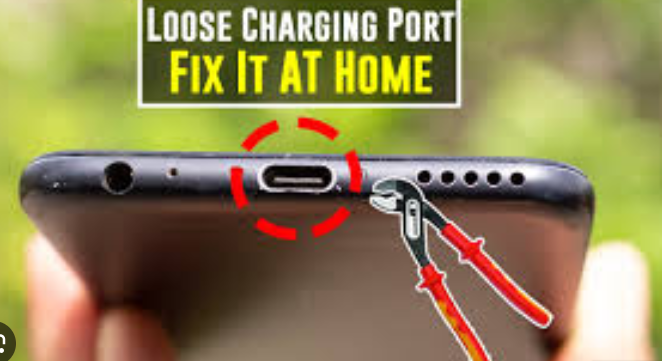
A smartphone that refuses to charge is one of the most frustrating problems for any user. Whether you rely on your phone for work, studies, or entertainment, a charging issue can disrupt your entire routine. The good news is that most mobile charging problems can be fixed easily at home. You don’t always need a technician—you just need to identify the cause and apply the right solution.
This step-by-step troubleshooting guide covers common reasons why your mobile may not be charging and explains practical solutions to fix the problem. By the end, you’ll know exactly what to do when your phone stops charging unexpectedly.
1. Understand the Most Common Charging Problems
Before jumping into the fixes, it helps to understand the typical causes behind mobile charging issues. Some of the most common include:
Dirty or clogged charging port
Dust, lint, and debris accumulate inside the charging port and block proper contact between the cable and the phone.
Damaged charging cable or adaptor
Cables can break internally even if they look fine externally. Adapters also fail over time due to overheating or power fluctuations.
Software glitches
Battery-related bugs, system crashes, or outdated software can interfere with charging.
Battery health issues
A worn-out or swollen battery may stop charging or charge very slowly.
Power source problems
The socket or extension board you’re using might not be delivering power properly.
Overheating and temperature control
Phones stop charging automatically when the temperature is too high for safety reasons.
2. Step-by-Step Troubleshooting Guide
Follow this simple but detailed step-by-step process to identify what’s wrong and fix your charging problem effectively.
Step 1: Check the Power Source
Try a different socket
Sometimes the issue is not with your phone but with the wall socket. The outlet may be loose, dead, or supplying unstable power.
Try plugging your charger into:
-
A different wall outlet
-
A power strip
-
A USB port on your laptop
-
A different room’s power source
Test with multiple power sources
If your charger works everywhere except in one specific socket, the problem lies in the power source—not your phone.
Step 2: Inspect the Charging Cable and Adapter
Check for visible cable damage
Look for:
-
Bent connectors
-
Frayed wire
-
Exposed inner wires
-
Loose USB head
-
Burn marks on the connector
Even a tiny internal break can stop charging.
Try another cable
Borrow a cable from a friend or family member. If your phone charges normally with another cable, your original one is faulty.
Test with another charging brick
Adapters fail too. Signs of a bad adapter:
-
Overheating
-
Blinking or no LED indicator
-
Burning smell
-
Slow charging
Use original or certified chargers
Non-certified chargers may fail prematurely or damage the phone.
Step 3: Clean the Charging Port
One of the most overlooked causes of charging failure is a dirty charging port. Dust, lint (especially from pockets), and debris create a barrier between the charging pins and the cable.
How to clean the port safely
-
Turn off your phone.
-
Use a wooden or plastic toothpick (never metal).
-
Gently scrape out dirt and debris.
-
Blow lightly into the port or use compressed air.
-
Reconnect the cable to see if charging starts.
Common mistakes to avoid
-
Do not use needles, pins, or metal tools.
-
Do not use liquid cleaners or water.
-
Do not blow too hard (moisture from breath can enter the port).
After cleaning, the phone often starts charging instantly.
Step 4: Check for Moisture in the Charging Port
Many modern phones show an alert like “Moisture detected in the USB port” and stop charging to prevent short circuits.
What to do
-
Leave the phone in a dry environment for a few hours.
-
Gently shake to remove water droplets.
-
Avoid using a hairdryer (heat can damage components).
Use wireless charging if supported
If your phone supports wireless charging, use it until the port dries completely.
Step 5: Restart or Soft Reset Your Phone
Software-related bugs can interrupt charging, especially after system crashes or app freezes.
Try a simple restart
Hold the power button → Restart.
Perform a soft reset
This varies by device:
-
Android: Hold Power + Volume Down for 10–15 seconds.
-
iPhone: Press Volume Up → Volume Down → Hold Power.
This clears temporary glitches and recalibrates the charging system.
Step 6: Check for Overheating
Your phone may intentionally stop charging if it becomes too hot. Overheating can occur due to:
-
Gaming while charging
-
Heavy apps running
-
Hot weather
-
Using the phone under direct sunlight
-
Charging inside a car on a hot day
How to cool down your phone
-
Remove the phone case.
-
Turn off unused applications.
-
Keep the phone in a cool place.
-
Let it rest for 10–15 minutes.
Once cooled, charging should resume normally.
Step 7: Try Wireless Charging (If Available)
If the phone has wireless charging support but won’t charge via cable, the issue is likely:
-
Charging port damage
-
Cable/adapter fault
-
Software failure
Wireless charging can temporarily keep your battery alive until you repair the USB port.
Step 8: Try Safe Mode (Android Only)
Certain third-party apps can interfere with power management and disrupt charging.
Boot into Safe Mode
-
Hold power button.
-
Press and hold “Power Off”.
-
Select “Reboot in Safe Mode”.
Now try charging the phone.
If it charges normally in Safe Mode, an app is causing the issue.
What to do
-
Uninstall recently installed apps.
-
Remove battery optimization apps and cleaners.
-
Avoid using unknown or untrusted apps.
Step 9: Check the Charging Port for Physical Damage
If your phone still isn’t charging, inspect the port closely.
Signs of a damaged port
-
Loosely fitting cable
-
Cable disconnects easily
-
Bent or missing pins
-
Port feels wobbly
A damaged port requires professional repair. DIY fixes are risky and can worsen the damage.
Step 10: Update Your Software
Software updates often include fixes for charging problems.
Why updates matter
-
Patches bugs
-
Improves battery management
-
Fixes USB connectivity issues
What to do
Go to Settings → System → Software Update
Install any pending updates.
After updating, restart the phone and charge again.
Step 11: Check Battery Health
Batteries degrade over time. If your phone has been used heavily for years, the battery may no longer hold or accept charge.
Indicators of poor battery health
-
Phone heats up while charging
-
Battery drains very fast
-
Phone shuts down unexpectedly
-
Charging stuck at a certain percentage
iPhone users
Go to Settings → Battery → Battery Health.
Android users
Codes vary, but you can try:
-
Dial ##4636##
-
Use built-in “Device Care” or “Battery” menu
-
Install reputable battery health apps
If health is below 70–80%, replacement is recommended.
Step 12: Reset System Settings (Software-Level Fix)
If charging problems began after installing apps or changing settings, a settings reset may help.
Reset only settings—not data
This keeps your files safe.
Go to:
Settings → System → Reset → Reset All Settings
This clears bad configurations but keeps your photos, apps, and personal files intact.
Step 13: Factory Reset (Last Software Option)
A full factory reset should be your last resort.
Warning:
This deletes everything on your phone. Backup your files first.
After resetting, set up the phone again and check if charging works.
14. Replace the Battery or Charging Port
If none of the above steps work, the issue is likely hardware-related.
Two components may need replacement
-
Charging Port (USB Port):
-
Cost-effective repair
-
Quick fix by a technician
-
Common in phones that were dropped or exposed to moisture
-
-
Battery:
-
Batteries wear out after 2–3 years
-
Replacement restores charging and battery life
-
Always use certified repair centers to avoid counterfeit parts.
15. When to Seek Professional Help
You should visit a technician if:
-
The phone was dropped recently
-
The phone was exposed to water
-
The charging port pins are visibly damaged
-
Battery is swollen or bulging
-
Phone only charges when the cable is held at a specific angle
-
Nothing happens after trying multiple chargers
Professionals can diagnose internal board issues, short circuits, or IC failures that users cannot fix at home.
Preventive Tips: How to Avoid Future Charging Problems
Use high-quality chargers
Cheap or duplicate chargers reduce battery life and damage charging hardware.
Avoid charging while gaming
This generates excessive heat and strains the battery.
Keep the charging port clean
Clean it gently once every 2–3 months.
Avoid overnight charging
Modern phones manage power automatically, but long-term habit can stress battery cells.
Remove phone case while charging
This improves airflow and reduces overheating.
Do not use your phone in extreme temperatures
Both extreme heat and cold affect charging efficiency.
Conclusion
A mobile phone not charging can be annoying, but the good news is that most issues are easy to diagnose and fix. From checking cables and cleaning the charging port to performing software resets and monitoring battery health, this guide provides all the essential troubleshooting steps you need.
If you’ve followed every step and your phone still won’t charge, the problem is likely hardware-related, and a professional repair technician can help resolve it.
Understanding the causes and taking preventive measures will not only solve your charging problem but also help keep your phone healthy for a long time. With proper care and the right tools, you can avoid future charging issues and ensure your smartphone stays powered whenever you need it.