
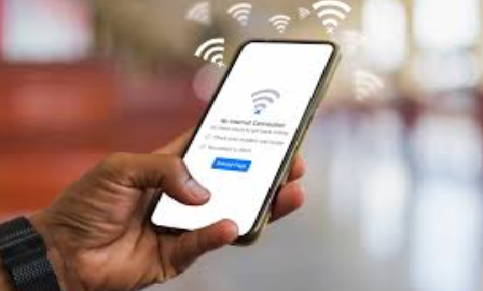
Wi-Fi connection drops can be extremely frustrating—especially when you are working, gaming, studying, or streaming online. Whether you are using a smartphone, laptop, smart TV, gaming console, tablet, or even a router-based device, sudden Wi-Fi disconnections can interrupt your entire experience. The good news is that most Wi-Fi issues can be fixed with simple troubleshooting steps, even if you are not a tech expert.
This comprehensive guide explains why Wi-Fi keeps dropping, the most effective troubleshooting methods, and how to prevent Wi-Fi problems in the future. These solutions work on all devices including Windows PC, Mac, Android, iPhone, smart TVs, and Wi-Fi-enabled gadgets.
Why Wi-Fi Keeps Disconnecting: Common Causes
Before jumping to solutions, understanding the root causes of Wi-Fi problems can help solve the issue faster.
1. Weak Wi-Fi Signal
A weak or unstable signal usually happens when you are too far from the router or there are too many walls and obstacles blocking the connection.
2. Router Overheating or Overloaded
Routers can overheat or get overloaded with too many connected devices. This causes frequent disconnections.
3. Outdated Router Firmware
Just like phones and computers, routers also need firmware updates to run smoothly.
4. Interference from Other Devices
Microwaves, Bluetooth devices, cordless phones, and neighboring Wi-Fi networks can interfere with your signal.
5. ISP Problems
Sometimes, the issue is not your device—your internet provider may be experiencing downtime.
6. Outdated Device Network Drivers
Computers and mobile devices can drop Wi-Fi if their network drivers or OS are outdated.
7. Router Configuration Issues
Wrong security type, wrong channel, or misconfigured router settings can lead to unstable Wi-Fi.
8. Band Switching Issues
Devices switching between 2.4 GHz and 5 GHz bands automatically may face sudden drops.
Troubleshooting Steps: How to Fix Wi-Fi Connection Drops
Below are detailed, step-by-step troubleshooting methods that you can apply to any device.
1. Restart Everything (Device + Router + Modem)
This is the most common and effective fix.
How to do it:
-
Turn off your device (phone, laptop, TV, etc.)
-
Unplug the router and modem from power for 30 seconds
-
Plug them back and wait for them to restart fully
-
Reconnect your device to Wi-Fi
This clears temporary glitches and resets the network connection.
2. Move Closer to the Router
If you are far from the router, the Wi-Fi signal weakens and becomes unstable.
Try these:
-
Move your device closer to the router
-
Avoid walls, metal objects, and floors between you and the router
-
Keep router in a central, elevated, open position
3. Check Your Internet Speed
If your speed is unusually low, your ISP may be the cause.
Check for:
-
Slow speeds
-
High latency
-
Frequent disconnection intervals
If slow speed is detected, your provider may be throttling bandwidth or experiencing issues.
4. Forget and Reconnect to the Wi-Fi Network
This refreshes the network configuration on your device.
Steps:
-
Open Wi-Fi settings
-
Select your Wi-Fi network
-
Choose “Forget”
-
Reconnect using your password
This often solves authentication and IP assignment issues.
5. Update Router Firmware
Routers need updates to fix bugs and improve performance.
How to update:
-
Open your router’s admin page (usually via IP like 192.168.0.1)
-
Go to System / Advanced / Firmware section
-
Click Check for Update
-
Install the latest firmware
This eliminates bugs that cause frequent drops.
6. Update Device Operating System and Network Drivers
Outdated software can cause Wi-Fi instability.
On Windows PC:
-
Go to Device Manager
-
Expand Network Adapters
-
Right-click Wi-Fi driver → Update Driver
On Android or iPhone:
-
Go to Settings → Software Update
On Smart TV / Gaming Consoles:
-
Go to System Settings → Update
7. Switch Between 2.4 GHz and 5 GHz Bands
Some devices prefer 5 GHz for speed; others depend on 2.4 GHz for stability.
Try switching to:
-
2.4 GHz if you need more range
-
5 GHz if you need faster stable speed
Manually selecting the right band can stop random drops.
8. Check for Wi-Fi Interference
Interference is a common cause of unstable Wi-Fi.
Possible sources:
-
Bluetooth devices
-
Baby monitors
-
Microwave ovens
-
Neighboring Wi-Fi networks
Fix:
-
Move router away from these devices
-
Change Wi-Fi channel in router settings
9. Disable Power Saving Mode on Your Device
Power saving modes often disable Wi-Fi temporarily.
On Windows:
-
Go to Power Options → Change Plan Settings
-
Disable Wi-Fi power saving
On Mobile:
-
Turn off Battery Saver mode
10. Reset Router to Factory Settings
Use this only when all other methods fail.
How to do it:
-
Press and hold the reset button on the router (usually for 10–15 seconds)
-
Reconfigure Wi-Fi name, password, and security settings
This removes problematic configuration errors.
Device-Specific Troubleshooting
Different devices may have different Wi-Fi problems. Here are customized solutions.
Wi-Fi Drops on Windows PC
Fixes:
-
Run Windows Network Troubleshooter
-
Disable random MAC address
-
Reset network settings:
Settings → Network & Internet → Network Reset -
Reinstall Wi-Fi drivers
Wi-Fi Drops on MacBook
Solutions:
-
Remove saved networks
-
Reset NVRAM and SMC
-
Change DNS settings to reliable servers
-
Disable “Ask to join networks”
Wi-Fi Drops on Android Devices
Fixes:
-
Clear cache of Wi-Fi settings
-
Turn Airplane mode on/off
-
Disable Wi-Fi scanning optimization
-
Turn off adaptive connectivity
Wi-Fi Drops on iPhone / iPad
Solutions:
-
Reset Network Settings
-
Disable Wi-Fi Assist (as it switches to mobile data)
-
Re-enable Location Services for Wi-Fi networking
Wi-Fi Drops on Smart TVs
Try these:
-
Power cycle TV
-
Use 5 GHz for better streaming
-
Reduce distance from the router
-
Disable VPN or proxy settings
Wi-Fi Drops on Gaming Consoles (PS, Xbox, Nintendo)
Fixes:
-
Use 5 GHz band if possible
-
Move console away from walls
-
Assign a static IP
-
Use wired Ethernet for best stability
Router-Specific Fixes for Wi-Fi Drop Issues
Sometimes the router itself is the main problem. Here’s how to fix router-level errors:
1. Change the Wi-Fi Channel
If interference is high, switch to a less congested channel.
Recommended:
-
For 2.4 GHz: Channel 1, 6, or 11
-
For 5 GHz: Any channel with less overlapping
2. Change Router Security Mode
Wrong security mode can cause drops.
Use:
-
WPA2-PSK (recommended)
-
WPA3 if supported
Avoid outdated modes like WEP.
3. Enable QoS (Quality of Service)
QoS controls bandwidth distribution and prevents devices from hogging the network.
4. Replace Old or Faulty Router Hardware
If your router is more than 3–4 years old, it may no longer support modern speeds and devices.
Upgrading to a dual-band or tri-band router can significantly improve stability.
How to Prevent Wi-Fi Drops in the Future
Applying regular maintenance can prevent Wi-Fi problems from returning.
1. Keep Your Router Firmware Updated
Automatic updates ensure your router stays secure and stable.
2. Place Router in an Ideal Location
Central, elevated placement ensures even signal coverage.
3. Use a Mesh Wi-Fi System for Large Homes
Mesh networks eliminate dead zones and provide stable coverage in big houses.
4. Avoid Connecting Too Many Devices to One Router
Each connected device uses bandwidth. Limit unnecessary connections.
5. Use Wired Ethernet for Heavy Tasks
Gaming, streaming, and large downloads work better on wired connections.
6. Restart Router Weekly
This clears packet buildup and refreshes performance.
When to Contact Your Internet Service Provider (ISP)
If you’ve tried everything but still experience drops, the issue might be at your ISP’s end.
Contact ISP if:
-
Your connection drops at specific times daily
-
You experience slow speeds even near the router
-
Your router lights flicker or show connectivity errors
-
Your modem frequently restarts on its own
They may need to:
-
Replace faulty lines
-
Fix backend connection
-
Provide a new modem or router
-
Upgrade your bandwidth plan
Conclusion
Wi-Fi connection drops can be caused by a wide range of issues—weak signal, interference, router glitches, outdated software, or provider-side problems. The good news is that most of these issues can be fixed with simple troubleshooting methods like restarting the router, updating firmware, adjusting router settings, switching Wi-Fi bands, or preventing interference.