
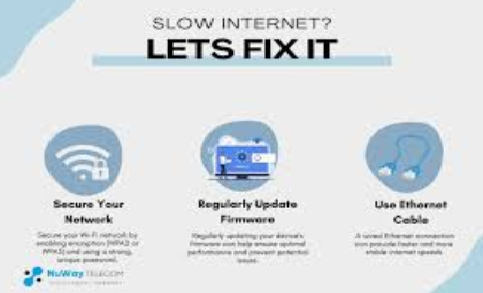
Slow internet is one of the most frustrating problems in the digital world. Whether you’re trying to watch videos, download files, attend online classes, or simply browse social media, lag and buffering can ruin the entire experience. The good news? You don’t always need a technician or expensive tools. With the right steps, most internet problems can be diagnosed and fixed in just a few minutes.
This complete guide will help you understand the common causes behind slow internet and the quick, practical solutions you can apply instantly. Whether you’re using Wi-Fi or a wired connection, this guide works for all setups.
Understanding the Root Causes of Slow Internet
Before jumping into solutions, it’s important to know why your internet slows down. Here are the most common causes:
1. Weak Wi-Fi Signal
Distance from the router, walls, metal objects, or electronic interference can weaken your signal.
2. Network Congestion
Multiple users streaming videos, gaming, or downloading large files at the same time can overload your bandwidth.
3. Outdated Router or Firmware
Old or outdated hardware may not support modern high-speed internet requirements.
4. Malware or Background Applications
Hidden software may consume your bandwidth without you knowing.
5. ISP Issues
Sometimes the issue isn’t in your home—your service provider may be experiencing an outage or throttling.
6. Faulty Cables or Connectors
Damaged Ethernet or fiber cables can reduce internet performance.
7. Overloaded Devices
Too many connected devices can slow down your Wi-Fi network drastically.
Understanding these causes makes troubleshooting easier and faster.
Step 1: Check Your Internet Speed
The first step is confirming whether your internet is genuinely slow or just feels slow.
What to Look For:
-
Download speed
-
Upload speed
-
Ping (latency)
Why Test Speed First?
Knowing your actual speed helps you see:
-
If you’re getting the speed you’re paying for
-
Whether the problem is with your device or entire network
-
If the issue is temporary or consistent
If the speed is significantly lower than expected, proceed with the next steps.
Step 2: Restart Your Router and Modem
This is one of the simplest and most effective fixes.
Why This Works:
Routers and modems store temporary data. Restarting clears:
-
Network cache
-
Temporary bugs
-
Overheated hardware issues
How to Restart:
-
Turn off your router and modem.
-
Unplug both for 10–15 seconds.
-
Plug back the modem first, wait for lights to stabilize.
-
Then turn on the router.
You may see speed improvement immediately.
Step 3: Move Closer to the Router or Improve Placement
Wi-Fi signals weaken with distance and obstacles.
Ideal Router Placement:
-
Center of the house
-
Elevated position
-
Away from walls and metal appliances
-
Far from microwaves, cordless phones, and Bluetooth devices
Avoid Placing Routers:
-
Inside cabinets
-
Behind the TV
-
On the floor
-
Near water tanks or mirrors
Better placement can instantly boost signal strength and speed.
Step 4: Check for Background Data Usage
Your device may be slow because apps are using data without your knowledge.
Check These Areas:
Windows PC
-
Windows Update
-
Cloud backup
-
Torrent software
-
Browser auto-sync
Smartphone
-
Auto-updates
-
Background app refresh
-
Cloud photos backup
What to Do:
-
Turn off auto-updates
-
Pause downloads
-
Close unwanted apps
-
Disable background data
This frees up bandwidth for tasks you actually need.
Step 5: Disconnect Unused Devices
Each device connected to your Wi-Fi uses a portion of your bandwidth.
Devices that commonly consume bandwidth:
-
Smart TVs
-
Gaming consoles
-
Laptops
-
Tablets
-
Smart home devices
-
Security cameras
Simple Fix:
Disconnect any device you’re not actively using.
You can also limit the number of devices connected simultaneously.
Step 6: Scan Your Device for Malware
Malicious programs can use your internet secretly to:
-
Download harmful files
-
Send stolen data
-
Mine cryptocurrency
Signs of Malware:
-
Slow browsing
-
Sudden pop-ups
-
High CPU usage
-
Unknown programs running
Fix:
-
Run a full antivirus scan
-
Remove suspicious apps
-
Clear browser extensions
This often increases both speed and device performance.
Step 7: Reset Network Settings
If your device has a misconfigured network, resetting can restore performance.
Resetting Helps Fix:
-
DNS issues
-
IP conflicts
-
Wi-Fi authentication errors
On Windows:
Go to Network & Internet → Status → Network reset
On Android/iPhone:
Reset Network Settings (this removes saved Wi-Fi passwords).
Use this only when other fixes don’t work.
Step 8: Use a Wired Connection for Stable Speeds
Wi-Fi is convenient but not always the fastest.
Ethernet cables provide:
-
More stability
-
No interference
-
Higher speeds
Ideal for:
-
Gaming
-
Zoom meetings
-
Uploading videos
-
Streaming in 4K
If your Wi-Fi is slow, plug in directly to see instant improvement.
Step 9: Change Your DNS Server
DNS acts like the “address book” of the internet.
Slow DNS = Slow browsing.
Faster DNS Options:
-
Cloudflare DNS
-
Google DNS
-
OpenDNS
Changing DNS can boost:
-
Browsing speed
-
Website loading time
-
Overall stability
Step 10: Update Router Firmware or Replace Old Hardware
Just like phones, routers need updates to stay efficient.
Update Benefits:
-
Fixes bugs
-
Improves speeds
-
Boosts security
-
Enhances performance
When to Replace Your Router:
-
More than 4–5 years old
-
Doesn’t support dual-band (2.4 GHz + 5 GHz)
-
No support for high-speed plans
-
Constant overheating or dropping signals
A modern router significantly improves internet speed.
Step 11: Reduce Network Load During Peak Hours
Many households share the same internet line.
Peak hours typically show slow speed due to heavy usage.
Tips to Avoid Congestion:
-
Schedule downloads for night-time
-
Avoid streaming and gaming simultaneously
-
Use Quality of Service (QoS) settings to prioritize apps
Step 12: Check for ISP Throttling
Sometimes internet service providers intentionally slow down speeds during:
-
Heavy usage
-
Streaming
-
Torrenting
Signs of Throttling:
-
Speed drops at the same time every day
-
Certain apps slow while others run fine
-
Speed increases after midnight
Fixes:
-
Use a wired connection
-
Enable QoS on router
-
Talk to your provider for plan upgrade
Step 13: Replace Faulty Cables and Connectors
Damaged cables reduce speed drastically.
Check These Cables:
-
Ethernet
-
Fiber optic
-
Coaxial
-
Router power cable
What to Do:
-
Replace bent or damaged cables
-
Avoid running cables under doors
-
Use CAT6 or CAT7 Ethernet cables for high speeds
Step 14: Verify Signal Strength with Wi-Fi Analyzer
A Wi-Fi analyzer helps you detect weak spots in your home.
It Can Show:
-
Wi-Fi coverage map
-
Interference from other routers
-
Best channel to use
Fix Weak Areas:
-
Move router
-
Add Wi-Fi extender or mesh system
-
Change Wi-Fi channel
Better signal = faster internet.
Step 15: Upgrade Your Internet Plan If Needed
Sometimes your usage has increased, but your plan hasn’t.
If You Do Any of This, You Need Higher Speed:
-
4K streaming
-
Online gaming
-
Video conferencing
-
Multiple users at home
Upgrading ensures smooth and lag-free browsing.
Advanced Troubleshooting (If Speed Is Still Slow)
If the problem still exists, try these deeper fixes.
1. Reset Router to Factory Settings
Removes all corrupted settings but must be reconfigured.
2. Use Dual-Band or Tri-Band Wi-Fi
Allows multiple devices to perform better.
3. Optimize MTU Settings
Adjusting MTU can improve upload and download speeds.
4. Change Router Channel
If your neighbors use the same channel, interference slows you down.
5. Install a Wi-Fi Mesh System
Perfect for large homes where signals drop in certain areas.
Prevent Slow Internet Issues in the Future
Here are long-term solutions to keep your internet performing well.
✔ Restart Router Weekly
Helps flush temporary data.
✔ Keep Firmware Updated
Fixes bugs and improves performance.
✔ Secure Your Wi-Fi with a Strong Password
Prevents unauthorized users from stealing bandwidth.
✔ Schedule Large Downloads
Avoid peak hours to maintain stable browsing.
✔ Keep Your Devices Clean from Viruses
Ensures optimal performance.
Final Thoughts
Slow internet can be extremely irritating, but with the right steps, you can resolve most issues within minutes. This guide walked you through simple to advanced solutions, from checking Wi-Fi placement and removing background apps to upgrading hardware and optimizing settings.