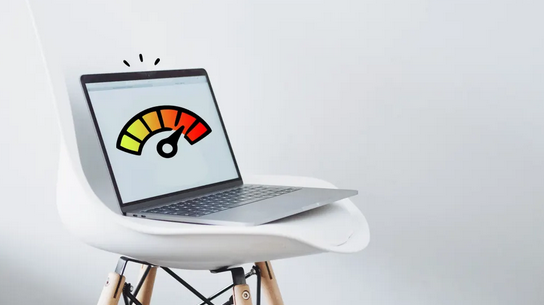
Laptop overheating is one of the most common issues faced by users—whether students, office workers, or gamers. Modern laptops pack powerful processors, fast graphics cards, and compact designs into thin chassis. While this is great for portability and performance, it also means laptops generate significant heat. When that heat isn’t managed properly, overheating occurs, leading to performance drops, unexpected shutdowns, long-term hardware damage, or even data loss.
The good news? Most overheating problems are completely preventable and fixable. This guide will walk you through how to identify the signs of laptop overheating, understand the underlying causes, and implement effective solutions to keep your device running cool and stable.
1. Understanding Laptop Overheating
Overheating happens when the internal temperature of your laptop exceeds the safe operating range. All laptops have built-in cooling systems—typically a combination of heat pipes, thermal paste, heat sinks, and cooling fans. When these systems become inefficient, heat builds up faster than it can be dispersed.
If ignored, overheating can lead to:
-
Thermal throttling (CPU/GPU automatically slows down)
-
Shortened component lifespan
-
Sudden system shutdowns
-
Battery degradation
-
Reduced performance and lag
-
Potential motherboard failure
Recognizing early signs can prevent severe damage.
2. Signs That Your Laptop Is Overheating
Before you can solve the issue, you must identify the symptoms. Some signs are obvious, while others may be subtle.
2.1 Excessive Fan Noise
If your fan sounds unusually loud or runs at full speed even during light tasks, it often indicates that the system is struggling to cool itself.
2.2 Hot Surface Temperature
Feeling extreme heat on the keyboard, bottom panel, or near the vents is a clear warning sign.
2.3 Sluggish Performance or Lag
Overheating triggers thermal throttling, slowing the processor or graphics card to reduce temperature.
2.4 Unexpected Shutdowns or Restarting
When temperatures reach dangerous levels, your laptop will shut down to protect hardware from permanent damage.
2.5 Warning Messages
Some laptops display on-screen alerts warning you of high temperatures.
2.6 Reduced Battery Life
Heat accelerates battery wear. If your fully charged battery drains rapidly, overheating may be a factor.
3. Common Causes of Laptop Overheating
Overheating isn’t always due to a single cause. It’s typically a combination of hardware, environmental, or usage-related issues.
3.1 Dust Build-Up
Dust and debris accumulate in the vents, fan blades, and heat sink over time. This restricts airflow, causing heat to become trapped inside the laptop.
3.2 Blocked Air Vents
Using a laptop on a soft surface like a bed, pillow, or couch blocks the bottom air intake vents, leading to rapid overheating.
3.3 Dried or Worn Thermal Paste
Thermal paste transfers heat from the CPU/GPU to the heat sink. Over time, it dries and becomes less effective.
3.4 Faulty or Inefficient Cooling Fan
A malfunctioning fan cannot move air effectively. Fans may also become slow due to dust or wear.
3.5 High-Performance Tasks
Running demanding software—games, 3D rendering, video editing—puts intense load on the CPU/GPU, generating more heat.
3.6 Software or Background Apps
Unknown or unnecessary apps running in the background can cause high CPU usage, increasing heat output.
3.7 Malware
Certain malware forces CPUs to run at full capacity, rapidly overheating the system.
3.8 Ambient Temperature
Using the laptop in hot environments reduces the effectiveness of its cooling system.
4. How to Check Your Laptop’s Temperature
You can easily monitor the temperature of your CPU and GPU using software tools. Most laptops don’t show temperature directly, so external apps are helpful.
4.1 Software Tools
Popular programs include:
-
HWMonitor
-
CoreTemp
-
SpeedFan
-
MSI Afterburner (for gamers)
-
Built-in manufacturer tools
Most CPUs are safe below 80–85°C during heavy tasks, while GPUs may operate safely up to 90°C. Idle temperatures should ideally remain below 40–50°C.
5. How to Fix Laptop Overheating: Practical Solutions
Now that you understand the causes, let’s explore step-by-step solutions to cool your laptop and prevent future overheating.
5.1 Clean the Vents and Fans
Dust is the number one enemy of airflow.
Steps:
-
Turn off and unplug the laptop.
-
Use compressed air to blow dust out of the vents.
-
If possible, open the laptop (if you’re comfortable) and clean the fan and heat sink area.
-
Avoid using vacuum cleaners—they can generate static electricity.
Result: Better airflow and improved cooling efficiency.
5.2 Use Your Laptop on Hard, Flat Surfaces
Avoid using your laptop on:
-
Beds
-
Blankets
-
Pillows
-
Sofas
Soft materials block ventilation holes and trap heat.
Better options:
-
Desk
-
Wooden table
-
Cooling stand
-
Any flat surface that doesn’t obstruct vents
5.3 Use a Laptop Cooling Pad
A cooling pad is an external fan system designed to increase airflow. They are especially useful for gaming laptops or older machines.
Benefits:
-
Adds extra airflow
-
Reduces surface temperature
-
Improves comfort during long sessions
Choose a cooling pad with at least one or two large fans for best results.
5.4 Reapply Thermal Paste
Thermal paste wears out over time. If your laptop is several years old and runs very hot, reapplying thermal paste can significantly improve temperatures.
Professional option:
If you’re not comfortable opening your laptop, a technician can reapply high-quality thermal paste.
DIY option:
Only recommended if you’re experienced with hardware disassembly.
Result: Lower CPU/GPU temperatures and better performance.
5.5 Reduce Background Programs
Too many background apps can overload the CPU.
How to reduce load:
-
Close apps you’re not using
-
Disable startup apps
-
Use Task Manager to end unnecessary processes
-
Remove bloatware
Tip: Check for unknown programs—these may be malware.
5.6 Run a Malware Scan
Malware can cause 100% CPU usage, which quickly raises temperatures.
Solution:
Run a full system scan using a reputable antivirus program.
5.7 Update BIOS and Drivers
Manufacturers often release cooling optimizations through BIOS updates.
What to update:
-
BIOS
-
GPU drivers
-
Chipset drivers
-
Power management drivers
Updates can improve fan curves and thermal performance.
5.8 Optimize Power Settings
Adjusting power settings reduces heat generation.
For Windows Users:
-
Open Power Options
-
Select Balanced or Power Saver mode
-
Reduce processor maximum performance to 90–95%
For macOS Users:
-
Enable Automatic Graphics Switching
-
Adjust energy-saving settings
5.9 Limit High-Performance Tasks
If overheating persists during heavy tasks:
-
Lower game graphics settings
-
Reduce rendering output
-
Close resource-intensive applications
-
Adjust fan settings if your laptop supports it
5.10 Elevate the Laptop
Even a small elevation can improve airflow.
Options:
-
Use a book or external stand
-
Buy foldable laptop risers
-
Elevate the back of the laptop slightly
This helps cool air flow through the bottom vents.
6. Long-Term Prevention Tips
Once you’ve solved overheating, maintaining good practices will keep your laptop cool.
6.1 Regular Cleaning
Dust the vents every 1–2 months.
Deep clean the interior every 6–12 months.
6.2 Avoid Extreme Temperatures
Laptops work best in environments between 10°C–35°C. Heat prevents cooling; cold affects battery life.
6.3 Keep Drivers Updated
Regular updates ensure better hardware management.
6.4 Use a Cooling Pad During Gaming
Gaming laptops benefit greatly from cooling pads.
6.5 Avoid Blocking Air Vents
Ensure airflow isn’t restricted during use or charging.
6.6 Store Laptop Properly
Avoid leaving it in a car or near heat sources.
7. When to Seek Professional Help
Sometimes overheating is caused by deeper hardware problems. You should take your laptop to a technician if:
-
The fan is not spinning at all
-
The laptop shuts down within minutes
-
Temperature stays above 90°C constantly
-
There is a burning smell
-
You notice unusual sounds from inside
-
You are not comfortable opening the laptop yourself
A professional can:
-
Replace thermal paste
-
Clean internal dust
-
Replace faulty fans
-
Repair the heat sink
-
Diagnose CPU/GPU failure
8. Is It Time to Replace Your Laptop?
If your laptop is very old, overheating may be a sign that the hardware is reaching its limit.
Signs it may be time to upgrade:
-
Device is over 5–7 years old
-
Persistent overheating even after cleaning
-
Fan constantly loud
-
Battery swelling or failing
-
Severe performance issues
-
Repeated shutdowns under light load
A new laptop will offer better cooling technology and improved energy efficiency.
9. Conclusion
Laptop overheating is a widespread problem, but it’s also one of the most preventable. By understanding the warning signs, identifying the causes, and applying the solutions provided in this guide, you can keep your laptop running smoothly and extend its lifespan.
Regular cleaning, proper usage habits, and monitoring temperatures can make a dramatic difference. Whether you’re a casual user, student, or gamer, taking care of your laptop’s cooling system ensures better performance, stability, and productivity.