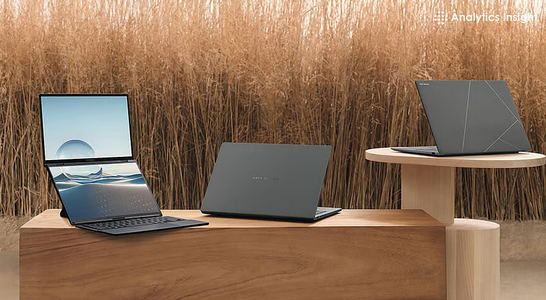
Choosing the right laptop as a student in 2025 is more than picking the prettiest model on the shelf — it’s about matching your field of study, lifestyle, and budget to the hardware and software that will actually make your academic life easier. Laptops today are more varied than ever: ultra-thin ultraportables, powerful creator machines, convertible 2-in-1s, and budget workhorses. This guide walks you through the practical factors to consider and gives clear, realistic recommendations so you can buy with confidence.
Why 2025 is different (short version)
In 2025, a few trends shape student laptop choices:
-
Efficient processors (ARM-based and next-gen x86) give much better battery life and thermal performance.
-
Integrated AI features (on-device helpers, hardware accelerators) are increasingly common and useful for note summarization, transcription, and on-device research tools.
-
High-refresh & low-power displays are mainstream, even on budget laptops.
-
Port consolidation — USB-C with Thunderbolt/PD is more ubiquitous; however, you still need legacy ports sometimes.
-
Remote and hybrid learning norms mean webcam, mic, battery life, and portability matter more than ever.
Keep these trends in mind, but don’t buy features you won’t use.
Step 1 — Clarify how you’ll use the laptop
Start by matching the laptop to your major and daily tasks:
-
Humanities / Social Sciences / Business: Word processing, spreadsheets, web research, video calls, presentations. Prioritize portability, keyboard comfort, battery life, and a good webcam.
-
STEM (Engineering, CS, Math): Code compilation, VMs, simulations. Look for stronger CPUs, 16GB RAM (or more), fast NVMe storage, and good thermals.
-
Design / Media / Architecture: Photo/video editing, 3D modeling, CAD. Prioritize discrete GPU or powerful integrated GPU, color-accurate display (IPS/OLED), 16–32GB RAM, and large fast storage.
-
Creative Arts / Music Production: Low-latency audio performance, multiple I/O, and ample RAM & storage. A good audio interface and reliable ports matter.
-
Gaming / Esports students: Powerful CPU + discrete GPU, high-refresh screen, good cooling—these machines are heavier and have shorter battery life.
-
General all-round student: A balanced ultrabook: reasonable CPU, 8–16GB RAM, 256–512GB SSD, long battery life, and light weight.
If your workload includes any heavy creative or compute workloads, plan to spend more on CPU/GPU and RAM. If your work is mostly reading, writing, and browsing, prioritize portability and battery life.
Step 2 — Key specs explained (what actually matters)
CPU (processor)
-
Why it matters: Handles everyday computing, compiling, rendering, web browsing with many tabs, and multitasking.
-
2025 reality: Mid-range CPUs are extremely capable. For basic student use, an efficient quad- or six-core CPU is fine. For heavy compilation, simulations, or video editing, choose 8+ cores or a high-performance variant.
-
Tip: Don’t obsess over clock speeds alone. Look for multi-core performance and thermal headroom (how long it sustains performance).
RAM (memory)
-
Why it matters: More RAM lets you keep many apps/tabs open and run heavy applications.
-
Guideline:
-
8GB — minimum acceptable for basic use (word processing, light browsing).
-
16GB — recommended sweet spot for most students (smooth multitasking, some light editing).
-
32GB+ — for video editing, advanced 3D/CAD, heavy VMs or datasets.
-
Storage
-
Type: NVMe SSDs are standard — much faster than HDDs.
-
Capacity guidance:
-
256GB — acceptable if you use cloud storage and don’t keep large media locally.
-
512GB — comfortable for most students.
-
1TB+ — useful for media-heavy majors.
-
-
Tip: If budget is tight, get a smaller SSD and add a cheap external SSD later.
GPU (graphics)
-
Integrated GPU: Great for general use and light content creation. Modern integrated GPUs in 2025 are surprisingly capable.
-
Discrete GPU: Needed for gaming, 3D modeling, video rendering acceleration, and some AI workloads.
-
Tip: For design/creative students, a mid-range discrete GPU is often worth it.
Display
-
Size choice: 13–14″ for portability; 15–16″ for a larger workspace; 17″ if you value a desktop replacement.
-
Resolution & panel: Full HD (1920×1080) is standard; higher resolution or OLED offers crisper text and better color but may hit battery life.
-
Brightness & color: Look for at least 300 nits if you study outdoors; creatives should aim for wide color gamut coverage (sRGB/AdobeRGB percentages).
-
Refresh rate: 60Hz is fine for study. Higher refresh rates are nicer for fluid scrolling and gaming but can reduce battery life.
Battery life
-
Target: 8+ hours is ideal for a full day without charging. Real-world battery depends on the CPU, display, and workload.
-
Tip: Manufacturers’ battery life claims can be optimistic; read real-world reviews when possible.
Weight & build
-
Students on the move: Aim under 1.4–1.6 kg (3–3.5 lbs) for comfortable daily carrying.
-
Durability: Metal chassis resist wear; MIL-STD ratings can be useful but aren’t always necessary.
Ports & connectivity
-
Must-haves: At least one USB-A, one USB-C (with charging), HDMI or DisplayPort (or adapter), and a headphone jack.
-
Extras: SD card reader is handy for media students. Ethernet may be useful in labs/dorms.
-
Wi-Fi & Bluetooth: Look for Wi-Fi 6E (or Wi-Fi 7 if available in your region) and Bluetooth 5.2+.
Webcam, mic & speakers
-
Webcam: 720p is common but 1080p or a privacy shutter is preferable for Zoom/Teams classes.
-
Mic: Dual-array mics with noise suppression improve call quality.
-
Speakers: Decent speakers matter if you watch lectures or participate in group viewing.
Keyboard & trackpad
-
Keyboard: Comfortable travel and tactile feedback reduce fatigue during long typing sessions.
-
Trackpad: A roomy, responsive trackpad (precision drivers) improves productivity.
Step 3 — Operating system: Which one fits your life?
-
Windows: Most versatile. Wide software compatibility for engineering, business, and gaming. If your university requires Windows-only apps, this is the default.
-
macOS (MacBook Air/Pro): Excellent battery life, build quality, and ecosystem. Great for design, writing, and app development (iOS). Consider Mac if you prefer stability and long-term software support — but check compatibility for course-specific software.
-
Chromebook (ChromeOS): Lightweight, secure, and affordable. Great for note-taking, web-based apps, and students who rely on Google Workspace. Not ideal if you need heavy desktop apps.
-
Linux: Powerful for CS/engineering students who prefer open-source tools, but a steeper setup curve and occasional hardware compatibility issues.
Pick the OS that runs the software you’ll need and that you find comfortable.
Step 4 — Budget tiers & recommended configurations
Tight budget (~$300–$600 / equivalent)
-
Good for: Basic coursework, note-taking, streaming, web research.
-
Minimum config: Efficient dual/quad-core CPU, 8GB RAM, 256GB SSD, 13–14″ display, decent battery.
-
Reality: Expect compromises on build and display. Chromebooks are excellent value here.
Mid-range (~$600–$1,000)
-
Good for: Most students — CS, business, social sciences, light creative tasks.
-
Recommended config: 6–8 core CPU, 8–16GB RAM (aim for 16 if multitasking), 512GB SSD, 14–15″ Full HD display, 8+ hours battery.
-
Why choose: Best balance of portability, power, and price.
Premium (~$1,000–$1,800)
-
Good for: Heavy multitaskers, media students, those who want top build quality and battery life.
-
Recommended config: 8+ core CPU, 16GB RAM (32 for creatives), 512GB–1TB NVMe, color-accurate display, discrete GPU optional.
-
Why choose: Longer useful lifespan and better customer support.
High-end / workstation (>$1,800)
-
Good for: Professional-level video editing, 3D/VFX, scientific computing, CAD.
-
Recommended config: High-end CPU, discrete GPU, 32GB+ RAM, 1TB+ SSD, premium display.
-
Why choose: These replace desktops for serious workloads.
Step 5 — Student discounts, warranty & where to buy
-
Student discounts: Many manufacturers and retailers offer education pricing — check manufacturer student stores (Apple, Dell, Lenovo, Microsoft) and local campus deals.
-
Warranty & accidental damage: Student life is busy — consider extended warranty or accidental damage protection (spills, drops).
-
Where to buy: Buy from authorized retailers to avoid warranty problems. If buying used/refurbished, prefer certified refurbished with a warranty.
Step 6 — Accessories that actually matter
-
Laptop sleeve or backpack: Protect your device; padded compartments help.
-
External SSD: Affordable backup and extra storage.
-
USB-C hub / dongles: Useful for schools with legacy projectors or peripherals.
-
Wireless mouse: More comfortable for long work sessions.
-
Noise-cancelling headphones: Useful for studying in noisy environments and online classes.
-
Portable charger / power bank: For long days when outlets are scarce (ensure it supports laptop PD charging).
Step 7 — Practical buying tips & red flags
-
Don’t buy the model with the flashiest ad if you don’t need the power. Higher performance often means shorter battery life and extra cost.
-
Check real-world battery reviews (not manufacturer claims) if long unplugged sessions matter.
-
Avoid soldered RAM if you think you’ll need more later. Some thin laptops glue RAM and storage; user-upgradeable designs are better for future-proofing.
-
Confirm keyboard layout and language before buying if you prefer a specific layout.
-
Watch for thermal throttling on thin gaming or creator machines — good cooling keeps performance sustained.
-
Buy for your degree, not what friends have. Your needs are unique.
Special cases & short recommendations
-
If you switch between classes and commute a lot: Prioritize weight under 1.5 kg, long battery, and a good keyboard.
-
If you need to run VMs or multiple development environments: Aim for 16–32GB RAM and a fast 1TB NVMe.
-
If you’re a photographer/videographer: Choose an IPS/OLED high-color-accuracy panel, discrete GPU helps render/export times, and consider a laptop with an SD card slot.
-
If you need a touch screen or tablet mode: Look at 2-in-1 convertibles — useful for note-taking with a stylus.
-
If you use cloud-based apps almost exclusively: A Chromebook or lightweight Windows laptop can save money.
Maintenance & making your laptop last longer
-
Clean vents & fans periodically to keep thermals healthy.
-
Use full-disk backups (or cloud backups) and keep important files synced.
-
Keep OS and drivers updated, but avoid major OS upgrades during exam periods.
-
Calibrate battery care: Don’t leave your laptop plugged in 24/7 constantly — use built-in battery health features if available.
-
Protect with a thin sleeve when carrying in backpacks to reduce scratches and dents.
Final checklist before you buy
-
Purpose: Does this laptop support your coursework and software needs?
-
Performance: CPU and RAM meet or exceed the minimum for your major.
-
Storage: SSD size is sufficient or easily expandable.
-
Battery: Real-world battery life ~8+ hours for a full day.
-
Portability: Weight and size match your carry habits.
-
Display: Resolution, size, and color accuracy fit your tasks.
-
Ports & connectivity: Has the ports you regularly need, or are you okay using dongles?
-
Warranty & discounts: Student discount available? Warranty coverage sufficient?
-
Upgradeability: Can you add RAM or storage later?
-
Accessories: Have you budgeted for important extras (case, hub, external storage)?
Quick sample configurations (templates you can search for)
-
Minimal student (cheap, light): 13–14″ Chromebook or Windows laptop, efficient CPU, 8GB RAM, 256GB SSD — best for notes, browsing, and cloud apps.
-
All-rounder (best value): 14–15″ ultrabook, 6–8 core CPU, 16GB RAM, 512GB NVMe, Full HD display, ~10 hours battery.
-
Creative student: 14–16″ with color-accurate display, 8+ core CPU, 16–32GB RAM, discrete GPU, 1TB NVMe (or external).
-
Engineering / CS student: 15″ with strong CPU, 16GB RAM (upgradeable), 512GB SSD, good cooling.
Closing thoughts
Buying a student laptop in 2025 is about balance: match performance to your coursework, prioritize battery life and portability if you’re always on campus, or invest in power if your major demands it. A well-chosen laptop should last you several years — think about upgradeability, warranty, and practical accessories as much as raw specs. Use the checklist above at the store or online listing, and don’t be swayed by one flashy spec — real-world usability matters most.